-
Introduction
-
Step 1: Confirm the Exact Qualcomm Platform
-
Step 2: Match Network Bands to Your Carrier
-
Step 3: Update the Firmware (but know why)
-
Step 4: Check the Physical RF Chain
-
Step 5: Lock Down Wi-Fi Settings for Demos
-
Step 6: Capture Logs Before You Fix
-
The Overlooked Step: Verify the APN or Network Profile
-
What Not to Do in an Emergency
-
Final Thoughts
Introduction
You know the feeling: a demo is two hours away, and the robot won't join the network. Or the smartwatch prototype connects for thirty seconds and drops off. I've been there more times than I'd like. In the last six years, I've handled roughly 50 emergency Qualcomm device deployments—mostly smartwatches and robotics units for manufacturing and trade-show clients. This is the checklist I actually run through when time isn't theoretical.
If you're new to Qualcomm, the quick background: it's the company that helped make some of the first mobile phones practical with CDMA, and its Snapdragon platforms are everywhere in wearables and robotics. The Wi-Fi bits often come from Atheros, which Qualcomm acquired back in 2011—so if you're debugging wireless, you're basically debugging Atheros-derived drivers even if they don't say so in the UI.
Step 1: Confirm the Exact Qualcomm Platform
It sounds obvious, but I've watched engineers lose an hour because they assumed the robot was using an RB5 board when it was actually running an older SD version. Smartwatch? Check whether it's Snapdragon Wear 4100+ or the newer 5100 series. Robotics? Determine whether it's an RB3, RB5, or one of the newer AI-focused boards. The fix for one often doesn't apply to another.
The quickest way: look at the boot logs, not the marketing sticker. The SoC name prints out in the first few lines. Photograph it. That single photo has saved me more than once.
Step 2: Match Network Bands to Your Carrier
When a smartwatch calls home over LTE, coverage isn't binary. The modem might support all the right bands on paper, but the carrier profile on the device could be locked to a different region. I've had a device work fine in the US but refuse to connect on a European carrier because the default band list didn't include B20.
Use a tool like adb shell getprop gsm.baseband to check the exact bands, or pull the device's "networks" screen under hidden settings. If the band list doesn't match the carrier you need, you can often change the region code in the device's modem configuration—but back up the current settings first. That's the kind of thing you don't want to guess on.
Step 3: Update the Firmware (but know why)
I know. You're in a hurry, and updating firmware feels like a detour. But a surprising number of emergency calls I've taken were caused by a known bug that was already fixed in a newer release. The problem is that the device had been sitting on a shelf for months and no one thought to check.
Here's the nuance: don't just flash the latest build. Look at the release notes for the exact symptom you're seeing. Maybe the modem has a known power-saving issue that causes disconnects on LTE band 12. Or the Wi-Fi driver does a channel scan too aggressively on robots. A targeted update is faster than a full reflash and less risky.
Still, I always capture a copy of the current firmware before updating. If the new build makes things worse, you need a quick rollback path—especially when a client's demo depends on you.
Step 4: Check the Physical RF Chain
With robotics, vibration during shipping can loosen the antenna pigtail. With smartwatches, it's less common but possible if someone swapped a case. I once spent three hours debugging a robot that kept losing signal, only to find the Wi-Fi antenna connector had a cracked lock on the M.2 card.
You don't need fancy equipment for a first pass. Just open the chassis enough to wiggle the antenna cables gently, reseat connectors, and verify there's no kink in the coax. Also check whether the device is using an external antenna with a magnetic mount—those ground planes are sensitive.
If you don't have hardware tools, you can still check the RSSI values in the firmware's diagnostic mode. If the signal seems impossibly low when you're standing two meters from the access point, it's often physical.
Step 5: Lock Down Wi-Fi Settings for Demos
This is the step that people skip because it feels too obvious. For a robotic demo, don't rely on a public office Wi-Fi with auto-channel selection. You want a dedicated access point on a fixed channel, preferably 36 or 149 (non-DFS), with band steering disabled.
Why non-DFS? DFS channels require radar detection, and when the channel flags a radar hit, connected devices get kicked off. I've seen this happen at a huge trade show where the venue's Wi-Fi was full of DFS channels. The robot would drop every three or four minutes, which looked like a Qualcomm failure. It wasn't. It was the network.
Atheros-derived drivers also tend to be picky about 802.11r fast roaming. If you don't need roaming, turn it off. For a single AP setup, you don't want the device doing constant scans looking for alternatives.
Step 6: Capture Logs Before You Fix
I have a confession: I still kick myself for not capturing a modem bugreport before I flashed a "fix" on a watchdog board. I assumed it was a firmware issue, flashed it, and lost the original logs. We finally solved the problem four hours later, but it would've been thirty minutes if I'd saved the evidence.
On most Qualcomm devices, you can pull logs via ADB or the vendor's diagnostic tool. At minimum, take a screenshot of the current network status, uptime, and firmware version. These cheap snapshots give you a baseline. Without one, you can't tell if the "fix" actually changed anything.
And yes, this slows you down in the beginning. But it speeds you up later. In one urgent case, a client's robot kept dropping connection only when the battery was below 40%. If we hadn't captured a log showing the modem's TX power drop, we'd still be replacing antennas.
The Overlooked Step: Verify the APN or Network Profile
Here's the one that trips up almost everyone. A smartwatch appears to connect to LTE but has no data. You check bands, you check firmware, you check SIM—and it still fails. Most likely, the APN is wrong or the network profile is set to "lte" instead of "ima" or whatever your carrier requires.
For smartwatches, APN settings are sometimes hardcoded per carrier. If you're using a regular SIM instead of an eSIM with the carrier profile, you'll need to manually add the APN. I've seen devices that only connect to VoLTE and have no data because the default APN from the factory doesn't match the local carrier's configuration.
Similarly, for robotics with cellular backhaul, some modules run in CAT-M1 mode by default when you need NB-IoT. The physical layer might succeed, but data transfers are painfully slow or non-existent. Check the modem configuration file for the actual RAT priority order.
What Not to Do in an Emergency
After 50-odd rush hours, these are the mistakes I see more than any other:
- Don't restart the device before pulling logs. A reboot can erase the last radio state and make the issue impossible to diagnose.
- Don't change multiple settings at once. If you toggle the APN, change the band, and update firmware simultaneously, you'll never know what worked—and worse, you might create a new problem.
- Don't trust the vendor's support to know your context. When you call a support line, they don't know that you're 30 minutes from a client demo. They follow a script. You need to provide logs and your own hypothesis first.
- Don't forget the SIM card itself. For smartwatches, a dog-eared SIM card is a classic culprit. If you have a spare, swap it. It takes thirty seconds and can save hours.
Final Thoughts
Honestly, I'm not sure why some Qualcomm devices seem finicky while others work forever. My best guess is thermal design or RF layout on the board, but that's way above my pay grade. What I do know is that a disciplined checklist beats pure instinct—even when you're in a rush.
To be fair, Qualcomm's official documentation is usually solid if you know where to look. But it's written for engineers who have time to read, not for someone standing at a booth at 8 a.m. with a robot that won't connect. This checklist is the shortened version I've trimmed down over the years.
Speed is important. But first-time-right is faster. Five minutes of checking the basics saves five hours of troubleshooting. Or, as I've learned the hard way: check once, twice, and then again. And when you finally find it, grab screenshots. Because there's a decent chance you'll see that same issue again next month.
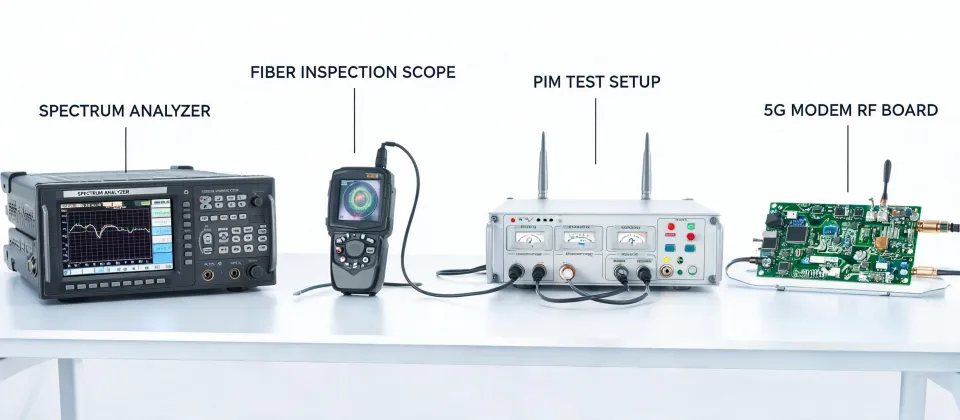
For telecom planning, the article should be read with protocol context in mind: 3GPP TS 38.xxx for radio behavior, IEEE 802.3bt for high-power PoE, ITU-T G.652.D for optical fiber assumptions, insertion loss in dB for link budget, and PIM in dBc for passive RF quality.